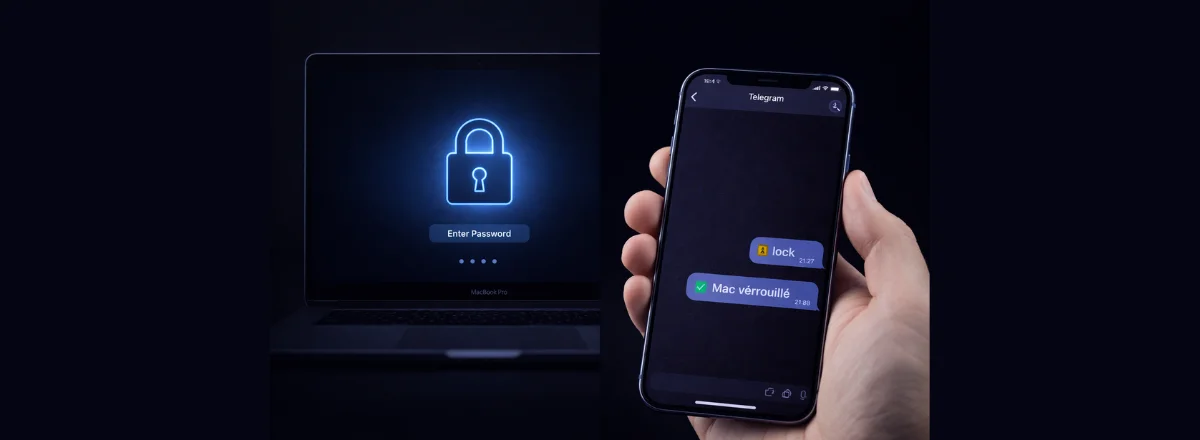
It was 3:47 PM. Already in the taxi toward the airport when I realized: I had left my MacBook unlocked in the hotel room. Session open. Files accessible. Housekeeping expected at 4 PM.
Two options: ask the taxi to turn back — 35 minutes round trip, missed flight. Or hope nobody touched the machine before checkout.
There was a third option I had forgotten I'd set up.
The Telegram message that fixed everything
I opened Telegram, typed lock in my conversation with the Maclaw bot, and hit Enter. Two seconds later:
— 3:49:03 PM, Paris
The login screen had appeared on the MacBook. No access without a password. I continued to the airport.
How it works technically
Maclaw runs a lightweight backend on your Mac that stays connected via the Telegram bot. When you send a command, it's received in milliseconds and executed via the native macOS API.
The lock uses pmset displaysleepnow combined with the "Require password immediately" setting — the same as pressing Touch ID + lock button. Native, reliable, no third-party server connection required.
Security: The Telegram bot responds only to your personal Chat ID. Even if someone knows the bot name, they can't send commands. Authentication is handled by Telegram.
Most useful commands when traveling
Since that incident, I regularly use these commands when I'm away from my Mac:
screenshot → Take a screenshot and send it to you
status → Mac state (battery, WiFi, uptime)
apps → List of open applications
alert off → Temporarily disable alerts
The screenshot command — particularly useful
If you're not sure whether someone has accessed your Mac, you can send screenshot before locking it. Maclaw takes a screenshot and sends it directly to Telegram. You see exactly the state of the machine at that moment.
What I would have lost without this
My MacBook had three client folders open in Finder, a VS Code session with proprietary code, and an unlocked password manager in the dock. Anyone with 3 minutes and a USB drive could have copied everything.
This isn't necessarily about malice — housekeeping wasn't going to steal my files. But an unlocked MacBook in a hotel room is a real risk, and not just in dramatic scenarios.
Statistic: According to the Kensington 2024 Device Security Report, 30% of corporate data breaches occur when a device is left unattended in a semi-public space (hotel, coworking, café).
Recommended setup before traveling
Before every trip, here's what I do now:
- Verify Maclaw is active — send
statusand wait for the response. - Enable "Require password immediately" in System Settings → Privacy → General.
- Disable automatic login if not already done.
- Enable Find My Mac as a second safety net.
Maclaw complements Find My, it doesn't replace it. Find My lets you locate and erase remotely via Apple. Maclaw gives you more granular and immediate control — lock, take a screenshot, cut a network connection — without going through Apple's servers.
What if the Mac isn't connected to the internet?
The obvious limitation: if the Mac is in airplane mode or WiFi is off, commands won't reach it. In that case, Find My will take over when the connection is restored.
For situations where you know the connection may be unstable, you can configure Maclaw to automatically lock after X minutes of inactivity — regardless of any remote command.
Full Control of Your Mac, From Anywhere
Lock, monitor, act — from Telegram, in seconds. Maclaw works even when you're not there.
Install Maclaw for Free