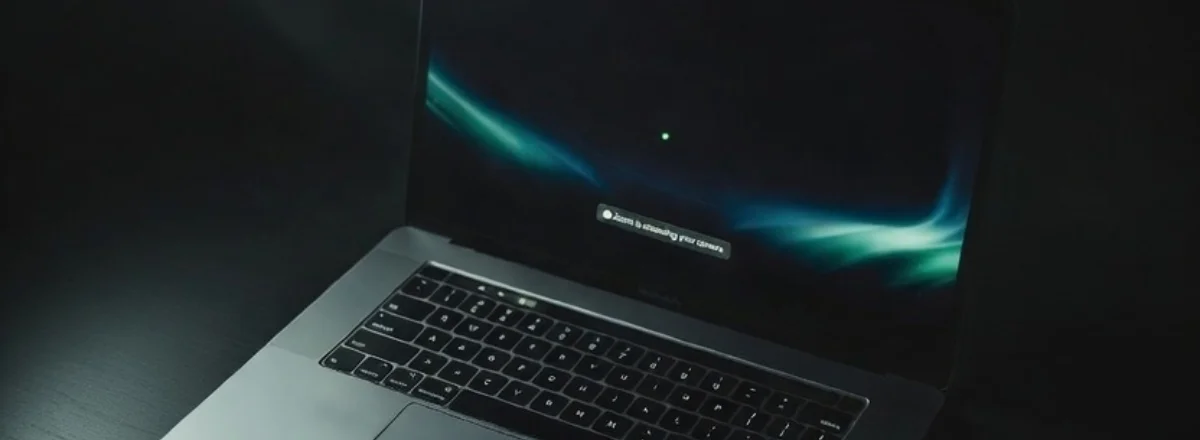
It was a Tuesday afternoon — an ordinary team meeting on Zoom. When I hung up, I noticed something odd: the small green dot next to the MacBook's camera was still on. Not for a second or two. For four full minutes.
Was Zoom still recording? Could someone see me? I had no way to know — until I checked the Maclaw logs.
What the green indicator really means
On a Mac, the webcam LED lights up every time an application accesses the camera. It's a hardware protection: wired directly to the sensor and cannot be disabled in software. If the light is on, an app has access to your camera. Full stop.
The problem is that macOS doesn't tell you which app or for how long. It notifies you when access starts, but not when it continues abnormally long after a call ends.
Good to know: macOS sends a notification when an app requests camera access for the first time. But if the app already has permission, it can access the camera again without alerting you.
What Maclaw captured
Maclaw continuously monitors access to system resources — camera, microphone, location — and timestamps everything. Here's what the log showed that evening:
16:01:44 — zoom.us → CAMERA_ACCESS_END
16:01:44 — zoom.us → MICROPHONE_ACCESS_END
⚠️ 16:37:52 — zoom.us → CAMERA_ACCESS_START (post-call)
16:41:09 — zoom.us → CAMERA_ACCESS_END
The meeting ran from 2:32 PM to 4:01 PM — that's normal. But 36 minutes after the call ended, Zoom reactivated the camera for 3 minutes and 17 seconds. No visible reason. No macOS notification.
Is Zoom spying on its users?
The honest answer: probably not intentionally. This behavior is documented and explained by several things:
- Virtual Backgrounds: Zoom sometimes briefly activates the camera after a call to recalibrate person detection.
- Auto-join: If you have another meeting scheduled, Zoom may pre-initialize the camera before you join.
- Known bug: Several Zoom versions had documented bugs where the camera stayed active after calls ended. Zoom fixed these in subsequent updates.
But here's the real problem: without monitoring, you have no way to know. You close your laptop thinking everything is off. Reality may be different.
Why macOS didn't warn you
macOS notifies you when an app accesses the camera for the first time in a session, or when it doesn't yet have permission. But if Zoom already has permission — which it does after your first call — it can access it again without triggering a new alert.
This is a design limitation of macOS's permission system. The system trusts apps you've already authorized. Maclaw fills this gap by logging every access, not just the first one.
How to respond if this happens to you
1. Check which app is using the camera in real time
Open Terminal and run:
This command lists the processes currently accessing camera resources.
2. Revoke Zoom's camera access
System Settings → Privacy & Security → Camera → uncheck Zoom. You'll need to re-enable it manually for your next call, but at least you control when access happens.
3. Block via Maclaw
With Maclaw, you can block a specific app's camera access from Telegram:
Access is cut immediately. A confirmation message arrives on your phone.
Best practice: Close your MacBook lid after every video call. It's the only 100% hardware guarantee that no app can access your camera.
What this experience taught me
I don't think Zoom is malicious. But this experience showed me something important: trust doesn't replace verification. When an app has a permission, it can use it at any time — before, during, or after what you're doing with it.
Real-time monitoring isn't paranoia. It's simply knowing what's happening on your own machine. Like knowing which windows are open in your house.
Since this incident, I've configured Maclaw to send me a Telegram alert if any application accesses the camera more than 2 minutes after my last user activity. I haven't had another surprise since.
Monitor Your Camera in Real Time
Maclaw notifies you instantly on Telegram whenever an app accesses your camera or microphone — even in the background, even after a call.
Try Maclaw for Free